Reassign a segment to a different category
LearnerLog guesses each segment's category from speed, but guesses aren't always right. Say your teen spent 15 minutes practicing turns in a neighborhood — that'll look like City Driving to the app. Reassigning takes three taps.
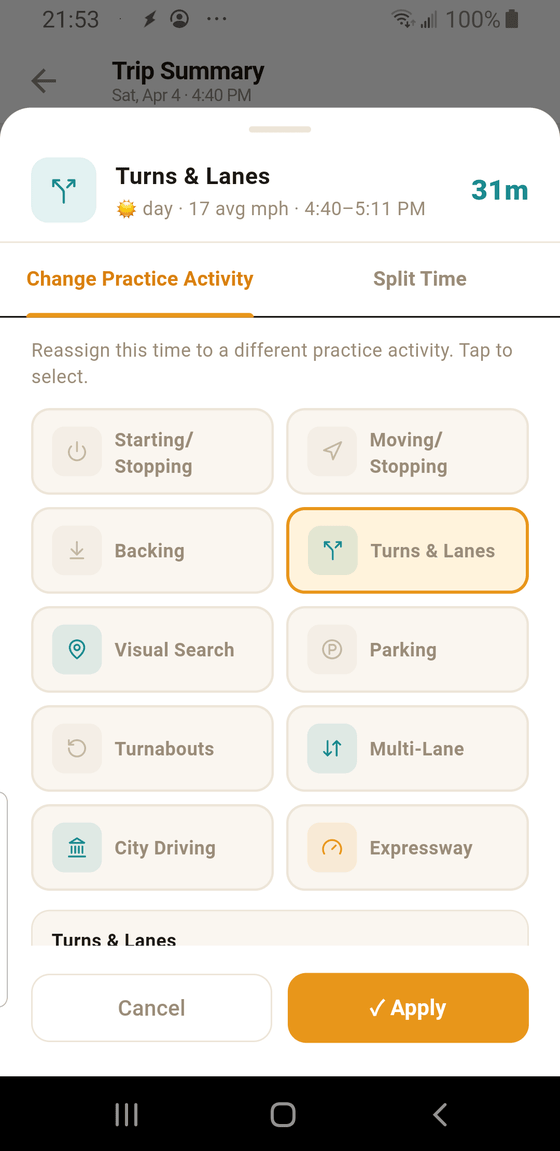
- 1 Three-tab header. Change Practice (this guide), Split Time (to break this segment into pieces), Credit (to adjust how credit is spent). You'll land on Change Practice by default.
- 2 Category grid. All 10 TDLR categories. The currently-assigned one has an amber highlight. Tap another tile to select it.
- 3 ✓ Apply. Commits the change. The sheet closes, the segment shows the new category in the Trip Summary, and credit is recalculated automatically.
When to reassign a segment
- Low-speed practice in a neighborhood — turnabouts, parking drills, slow-lane work. GPS-based categorization sees "low speed + residential" and calls it City Driving. Reassign to Turns & Lanes, Parking, or Turnabouts to match reality.
- Highway-paced city routes. A long, flowy arterial at 55 mph can get labeled Expressway. If it wasn't on an actual freeway, reassign to Multi-Lane or City Driving.
- Visual Search practice. This is rarely auto-detected — you'll typically reassign a chunk of any drive to Visual Search to credit an intersection-scan drill.
Does this re-record the drive?
No. The route, timestamps, GPS data, and duration are unchanged — you're just relabeling a segment. You can reassign a segment multiple times until it's right, and nothing about the underlying recording is affected.
What if the whole segment shouldn't be one category?
Use Split Time from the same sheet. Split the segment into pieces first, then reassign each piece to a different category on its own.
Tip: Credit is allocated at the category level. Reassigning a segment from City
Driving (which you may already have 5 rows for) to Parking (which often needs more rows) is one
of the fastest ways to fill out the TDLR form without extra practice.